
I was contacted last week by a former colleague who is just getting into MDT. He was missing drivers on one model and received this common error page during his boot sequence. Naturally, I had loads of resources to share but sadly the final part was missing from my blog. The error is:
A connection to the deployment share (\\Server\DeploymentShare$)
could not be made.
The following networking device did not have a driver installed.
PCI\VEN_15AD&DEV_07B0&SUBSYS_07B015AD&REV_01
Here’s how to resolve this issue.

This error is very helpful in that it shows the hardware ID of the missing network driver. A quick Google search or visit to Microsoft Update Catalog should find the missing drivers.
Create a Driver Store
After you locate and download the correct driver, create an organised driver store on a local or network drive. I posted a script to do this a few months back. MDT Powershell: Creating a Driverstore folder structure

Import Drivers
Next, import the drivers into the desired Windows PE folder and run the script to import the drivers into the deployment workbench. Again, I created another script to do this a few months back. MDT Powershell: Importing device drivers from organised folders My script will not only creates the driver folders but the selection profiles also.
Check the hardware ID of the imported driver and ensure that it matches the error from earlier.

Apply Selection Profiles
We now need to use selection profiles to ensure that only the Windows PE network drivers get copied to the boot disk, otherwise the boot image can take longer to load.
To do this, right-click the deployment share and select properties. Select the correct platform then the WinPE selection profile.

Recreate the Boot Image
Finally, recreate the boot image by updating the deployment share.

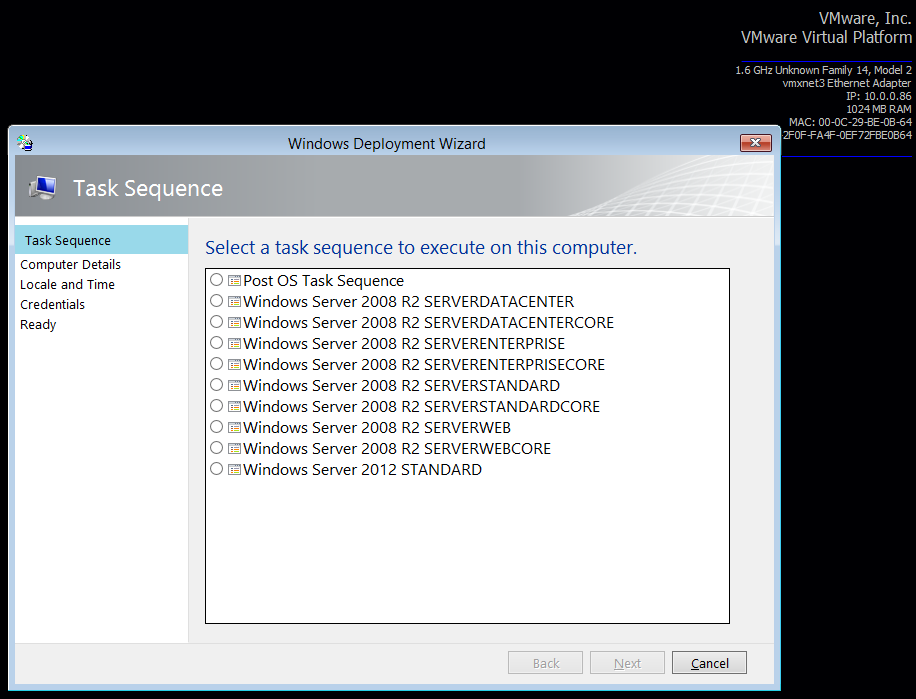
Update your boot media with the newly updated LiteTouchPE_x64.wim file and reboot your client.
I recommend implementing selection profiles like this to isolate your boot drivers and ensure that the boot process runs as fast as possible.


 Scriptimus Ex Machina
I have been getting this same error message in my TS, but I have dug into my driver selection profiles and I still cannot rectify this. I have even used drivers from similar models. I am using the Dell Driver deployment .cab files which has all of the required drivers bundle for certain models. I have had to resort to installing the drivers manually at the point where it fails. This is only happening on the Dell Latitude E6430 laptops
If you require any further information before you can assist, please do not hesitate to ask.
Any help you can offer is greatly appreciated.
Many thanks
Scott
LikeLike
Hi Scott,
Have you followed all the steps above?
Ensure that the hardware ID matches in the deployment workbench (as above)
The driver may be wrong so send me the hardware ID and I’ll search to try and find a match for you.
/Andrew
LikeLike
How do you install the driver manually? Mine is also failing but I don’t have them setup like shown here, I have “All Drivers and Packages” added but it still doesn’t work.
LikeLike
Adding all the drivers to your winpe boot image will slow your boot times. Get the hardware ID given and ensure that the correct hardware ID is imported.
LikeLike
Hi Andrew,
Thanks for replying. When running through the TS, it fails after the partition C, and just after installing the OS, it drops to a CMD and I have to type “exit” so that it reboots and continues. Once the TS continues and reaches the first stage of ‘inject drivers’, I can see it skip my selection profile for Win7 – E6430 Drivers without injecting them (this does not happen on any other models we have). I thought that this might be due to MDT not detecting the model during the Gather stage, but after checking the logs, this was not the case.
I noticed in your post that you have a Win PE drivers folder, which I do not have. Is this strictly necessary or is it fine to have all of the selection profile drivers add themselves to the Win PE image?
The particular driver which is failing is this:
PCI\VEN_8086&DEV_1502&SUBSYS_05341028&REV_04
I have checked through the drivers folders I have created in my workbench and I was able to find drivers matching that particular device ID, which is also why it seems strange.
Apologies for the long winded reply.
Thanks
Scott
LikeLike
I cannot find the matching network drivers for the HP DL380e and HP DL380p
HP DL380e ->
Could not find driver for
VEN 8086
DEV 1521
SUBS 3380103C
REV 01
HP DL380p ->
VEN 14E4
DEV 1657
SUBS 169D103c
REV 01
I can only find the Without the REV_01 id
I can see MDT is injecting them but i get the same error message when entering the OS (Windows 2008 R2 / Windows 2012) for the first time.
LikeLike
Great article! If only I’d found it two days ago! I just got finished piecing how to do this together on my own after inheriting the imaging system after the person who set it up left.
LikeLike
Well done mate. So much more gratifying when you figure it out yourself.
LikeLike
Hey Andrew
Iv been working with MDT/WDS for a while now and just trying to iron out a few outstanding issues.
We have a few PC Builds that do not use Add-In NIC’s for a number of reasons (some motherboards will not boot the environment with the intel NIC)
So I use the on-board, Once the TS gets into Windows I get an error:
A connection to the deployment share (\\SHARE NAME) could not be made.
The following networking device did not have a driver installed.
PCI\VEN_8086&DEV_1503&SUBSYS_849C1043&REV_05
Retry: Try again to connect to the deployment share
Cancel: Give up, cancelling any in-progress task sequence
Now I have found the PNPDeviceID for the device and on http://catalog.update.microsoft.com/v7/site/Home.aspx and downloaded the correct .inf files. I have also tested this by installing the driver from these .inf files via device manager and it worked perfectly.
I imported the .inf files into out-of-box drivers
In the deployment share properties -> WinPE x64 Drivers and Patches this is set to All Drivers and Packages and Radio button -> Include all drivers from the selected profile.
In the Task Sequence:
Post Install -> Inject Drivers -> All Drivers and packages, with Radio Button -> Install all drivers from the selected profile.
I have updated the deployment share, completely regenerating the WIM, and also replaced the WIM in WDS as well.
Yet everytime I get to windows, Bang get that error again… Where am I going wrong? I can setup remote session as well for people if you want to have a look first hand.
Thanks
LikeLike
I’m receiving an error similar but it doesn’t provide a device id in the error. where the device id shown your example above i get “DHCP LEASE WAS NOT OBTAINED FOR ANY NETWORKING DEVICE.POSSIBLE CAUSE: CHECK PHYSICAL CONNECTION.
I’m having this issue with a couple of HP models HP 8460P and HP 6407B. I have downloaded the nic driver from HP’s site and also tried nic drivers from catalog.microsoft.com. I have a driver store setup by os\make\model and have very limited drivers in each model except for the very few things not natively detected. I have tried disabling all drivers except the nic during the deployment I see it injects the driver but when it boots in the OS i get the error stated above and device mgr hasn’t injected the nic driver. I’m kind of at a lost right now on how to get this working . any suggestions would be greatly appreciated. I even added info in custom.ini to load drivers but will test that on monday to see if that will help. Please help i’m at my wits end lol.
LikeLike
I’ve attempted to do this and having a lot of trouble with this. I’m working with an HP 1040 Folio G2. It has a dongle for its Ethernet and i always seem to have trouble with these types of computers. The hardware ID in the error is PCI/VEN_8086&DEV_15A2&SUBSYS_22708086&REV_03. However, when i check the Intel Net E1D62x64.inf 12.12.80.19 driver it displays PCI/VEN_8086&DEV_15A2. But does not display SUBSYS_22708086&REV_03 or even SUBSYS_22708086. This seems to be the latest driver for the Intel Ethernet Connection (3) I218-LM nic.
I’ve created driver selection profiles as you stated and regenerated my boot images. I then add the boot image into WDS boot images. I then boot the computer to lite touch and receive the error?
Anything you can think of for me to try would be greatly appreciated.
Thank you
Eric.
LikeLike
In some cases, I’ve imaged the machine with the manufacturers image and just used what they’ve used. What will also work in the full os will also work in winpe.
LikeLike
I just figured this out. I upgraded all my 15 MDT servers from MDT 2012 to 2013. Just read that i needed to use Windows 8.1 drivers for window PE 5.0 boot image even though i will be imaging the computers with windows 7. It’s working now. I’ve been banging my head on this all week. haha. Thx for you help. 🙂
LikeLiked by 1 person
Scriptimus Please help: Ive been googling the driver problem all along:
Cannot connect to the DeploymentShare – PCI\VEN_8086&DEV_1502&SUBSYS_05341028&REV_04
I cannot get this working: when i upgrade to MDT2013 my workbench stop working, its crazy.
Im deploying to a Dell( 😦 All in one 9030 its frustrating.
I had gone to the dell website and downloaded the Cab files for each model of dell’s that we use.
This will be my thrird day :
PS: My installation is running of Windows 7 SP1 and WDS Server 2012R2
if all else fails how can I move my installation to the WDS server?
LikeLike
Follow the instructions above and remember to update your boot media.
LikeLike
Thanks Andrew it worked like a charm.
LikeLike
Can you please start an MDT forum – Or can you refer me to one.Because Im receiving LTIApply errors. DELL just drivers me crazy, HP/Lenovo works like a dream.
LikeLike
The official MDT forum is here:
https://social.technet.microsoft.com/Forums/en-us/home?forum=mdt
LikeLiked by 1 person
I’m running into an issue where my driver problem is NOT when booting into WinPE, but rather after the OS has been deployed and the computer is trying to load the OS…it auto logs into Windows 7 and then I get the error message about no networking device driver installed. The machine then requires a full reboot. I have imported as many Windows 7 network drivers from Intel into MDT as I could find related to the hardware, but it never installs them. On Windows 10, the machine works fine, but not in Windows 7.
LikeLike